Reviewing a blank application
When a third party (lawyer, etc.) requests a blank application, use the "Manage Application Pages" screen to "view" and then print each page instead of trying to create a blank application in PDF print form.
Here's how:
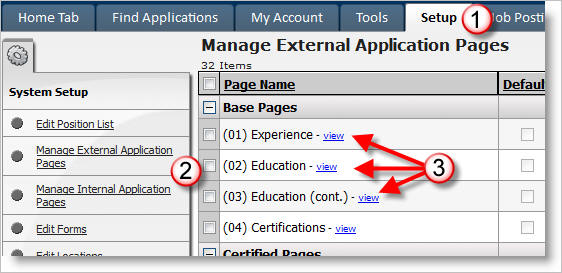
1) Click on the Setup tab.
2) Click on Manage Application Pages.
3) Click on "view" to open each page and print it.
Note: The initial pages of the application (Personal Info, Postal Address, Vacancy Desired and Position Desired) are not located in the Manage Applications screen and can only be printed by logging in as a sample applicant.
Because the PDF print form is dynamic and only prints relevant information the only way to create a blank PDF print application is to literally fill out a blank application using underscores or spaces in fields you want printed.